🚀 LinkedIn Lead Scoring Automation
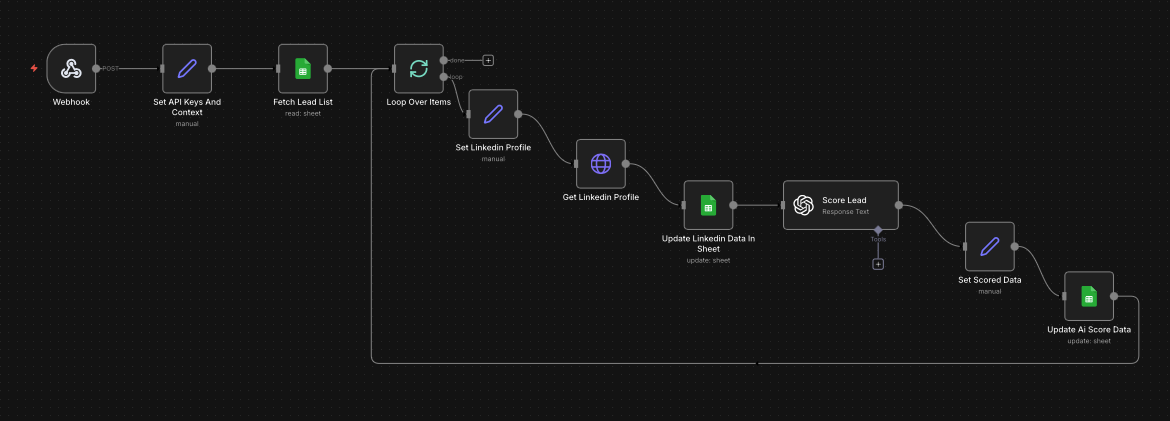
Pull LinkedIn profiles, enrich them with Apify, score every lead with AI based on your ICP, and write results to Google Sheets — automatically. No Clay credits. No manual scoring.
What You'll Get
AI-Powered Lead Scoring
Each LinkedIn profile is scored 0–100 by GPT based on your exact ICP and campaign context — not generic rules.
No Clay Credits Required
Runs entirely on n8n + Apify + OpenAI. Score 1,000 leads for ~$1–$3. No expensive SaaS credits ever.
Google Sheets Native
Paste LinkedIn URLs, run the workflow, see enriched results with score, label, and fit summary in your sheet.
Scales to 1,000+ Leads
Built-in batching handles any list size. 50 leads in ~2 min. 500 leads in ~25 min. Fully hands-off.
Full Data Ownership
Everything runs in your n8n with your API keys. No vendor lock-in, no usage credits, no surprise invoices.
Fully Customizable
Modify the scoring logic, ICP definition, AI reasoning, and output columns — you own every node.
🧠 How Lead Scoring Works
Each profile is scored 0–100 by AI based on 6 dimensions against your ICP and campaign context.
Quickstart Implementation Guide
7 steps · takes about 15 minutes to set up
STEP 1: Download the Workflow
Get the complete n8n workflow file (.json) from Google Drive. This includes all automation logic, AI scoring prompts, and Apify integrations.
STEP 2: Import to n8n
Open your n8n dashboard and import the workflow file.
- →Click Workflows
- →Select Import from File
- →Upload
linkedin-lead-scoring-workflow.json - →Click Import
STEP 3: Set API Keys & Campaign Context
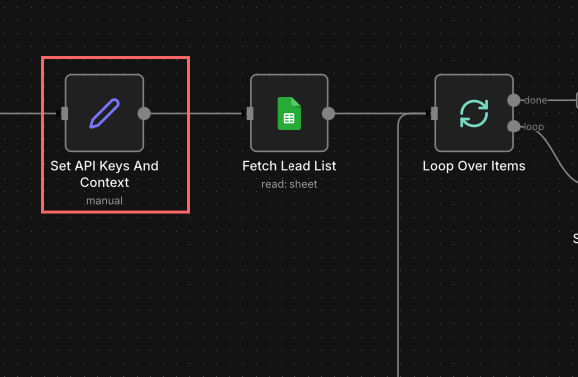
Open the "Set API Keys And Context" node. Add your Apify token, OpenAI key, Campaign Context, and Ideal Customer Profile.
STEP 4: Copy the Google Sheets Template
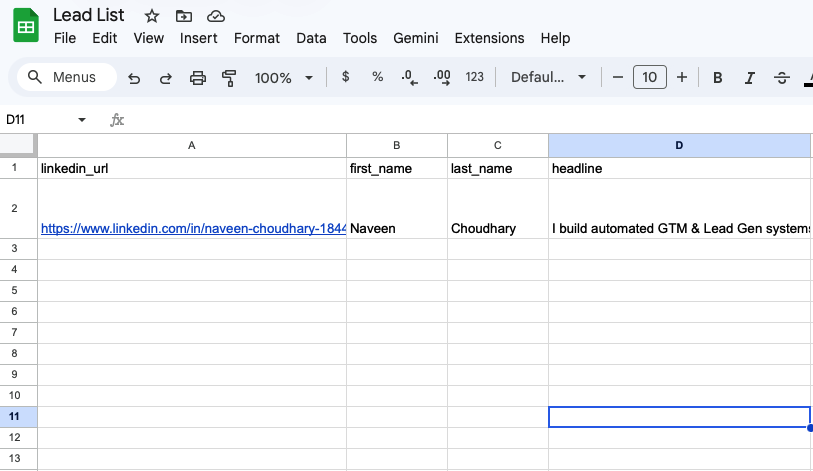
You'll use this sheet to input LinkedIn URLs. One column. That's it.
- →Click File → Make a Copy
- →Save it to your Google Drive
STEP 5: Connect Google Sheets to n8n
Back in n8n, link your copied Google Sheet to the workflow.
- →Open the "Read LinkedIn URLs" node
- →Click Credentials → Add New
- →Connect your Google account
- →Select your copied sheet and the correct tab
STEP 6: Add LinkedIn URLs & Run
Paste profile URLs into the linkedin_url column. Add 10, 100, or 1,000+ — the system handles batching automatically. Then click Execute Workflow in n8n.
STEP 7: View Your Scored Results
Open your Google Sheet. New columns populate automatically: lead_score, score_label, and fit_summary.
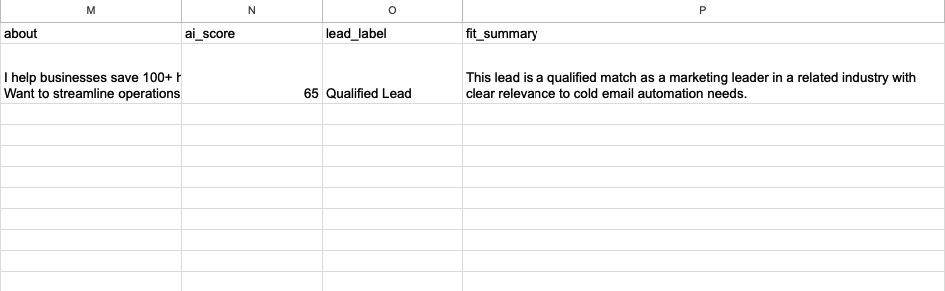
🎉 You're live! Focus your outreach on Dream Leads and Strong Leads first.
📚 Resources & Support
- n8n Workflow: Download linkedin-lead-scoring-workflow.json
- Google Sheets Template: Open and Make a Copy
- Apify Token: console.apify.com/account/integrations
- OpenAI API Key: platform.openai.com/account/api-keys
Need Custom Lead Scoring?
We'll build a fully tailored lead scoring system that fits your exact ICP, data sources, and outbound stack — deployed and working in days.
Book a Call